Building and editing the deck
The deck building and editing functionality for the reservoir simulator connectors (IMEX™, GEM™, STARS™, ECLIPSE™, and tNavigator™) has been completely redesigned in JewelSuite Subsurface Modeling version 2025.3. The new framework offers a significantly more robust and user-friendly experience for editing the simulation decks generated using JewelSuite.
This functionality is particularly valuable for adding simulation keywords that are not available through the JewelSuite user interface. For example, you can now easily insert special keywords required for Carbon Capture and Storage (CCS) modeling.
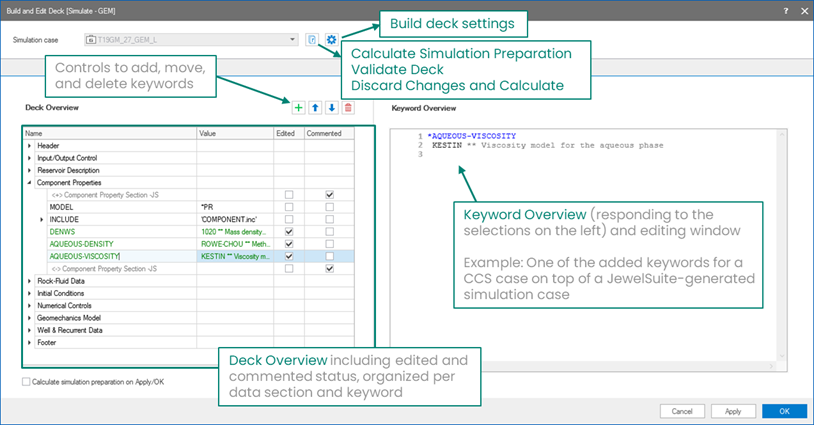
Build and Edit Deck form. click to enlarge
 Deck building in
 In JewelSuite, deck building refers specifically to the creation of files stored in the simulation case folder within the *.Cases directory.
Deck building is different from:
- Making changes (e.g., add, edit, comment out, delete) on the Deck Overview pane
- Triggering the Calculate Simulation Preparation process
These actions serve different purposes and should not be confused with deck building.
The Build and Edit Deck form (SIMULATE > your simulator of choice > Build and Edit Deck) provides three options under the  icon next to the selected simulation case:
- Validate Case
- Calculate Simulation Preparation
- Discard Changes and Calculate (Simulation Preparation)
Case validation is available on the Build and Edit Deck form (SIMULATE > your simulator of choice > Build and Edit Deck) as an option under the icon next to the selected simulation case. The results of the validation are displayed in the Output Information pane. If any part of the case is invalid, the application highlights problematic areas using warning icons and warning messages that reference the specific issues.
This process is available on the Build and Edit Deck form (SIMULATE > your simulator of choice > Build and Edit Deck) as an option under the icon next to the selected simulation case. It involves validations, updates and (re)calculations based on simulation workflow settings and input data. It may include operations such as:
These operations can be time-consuming and computationally intensive, particularly for large and complex models.
You can initiate this process by either:
- Clicking Calculate Simulation Preparation under the icon next to the selected simulation case, or
- Selecting the Recalculate with workflow settings on Apply/OK checkbox on the bottom left corner of the form and clicking Apply or OK.
Use this option only when updates and recalculations are necessary based on the simulation workflow settings and input data. There are five 3D grid properties that are critically important that go as input to 'Simulation Preparation' process:
- Porosity
- Permeability in the I-direction
- Permeability in the J-direction
- Permeability in the K-direction
- Net-to-gross
If you are making any changes to any of the 3D grid properties mentioned above, make sure to trigger this process.
Clicking Calculate Simulation Preparation populates the Deck Overview but does not create or update the deck files stored in the simulation case folder within the *.Cases folder.
This process is available on the Build and Edit Deck form (SIMULATE > your simulator of choice > Build and Edit Deck) as an option under the icon next to the selected simulation case. All of the manual changes (e.g., adding, editing, commenting out, deleting) you have made on the Deck Overview pane will be discarded and the deck will be reverted to its original status as it is created by JewelSuite based on the simulation workflow settings and input data.
- Click Apply (or OK) to build or update deck files In JewelSuite, deck building refers specifically to the creation of files stored in the simulation case folder within the *.Cases directory. To build or update the deck files (i.e., the files stored in the simulation case folder inside the *.Cases folder), you must click Apply or OK on the Build and Edit Deck form.
- Avoid editing Reservoir Geometry and Properties It is strongly discouraged to modify keywords related to Reservoir Geometry and Properties sections (RES_GEOM.inc and RES_PROPS.inc). These sections are automatically created by JewelSuite processes such as simulation grid creation (resulting from a special conversion from JewelGrid), transmissibility calculations and well index calculations. Any changes to these sections may compromise the integrity of the model and lead to unexpected results.
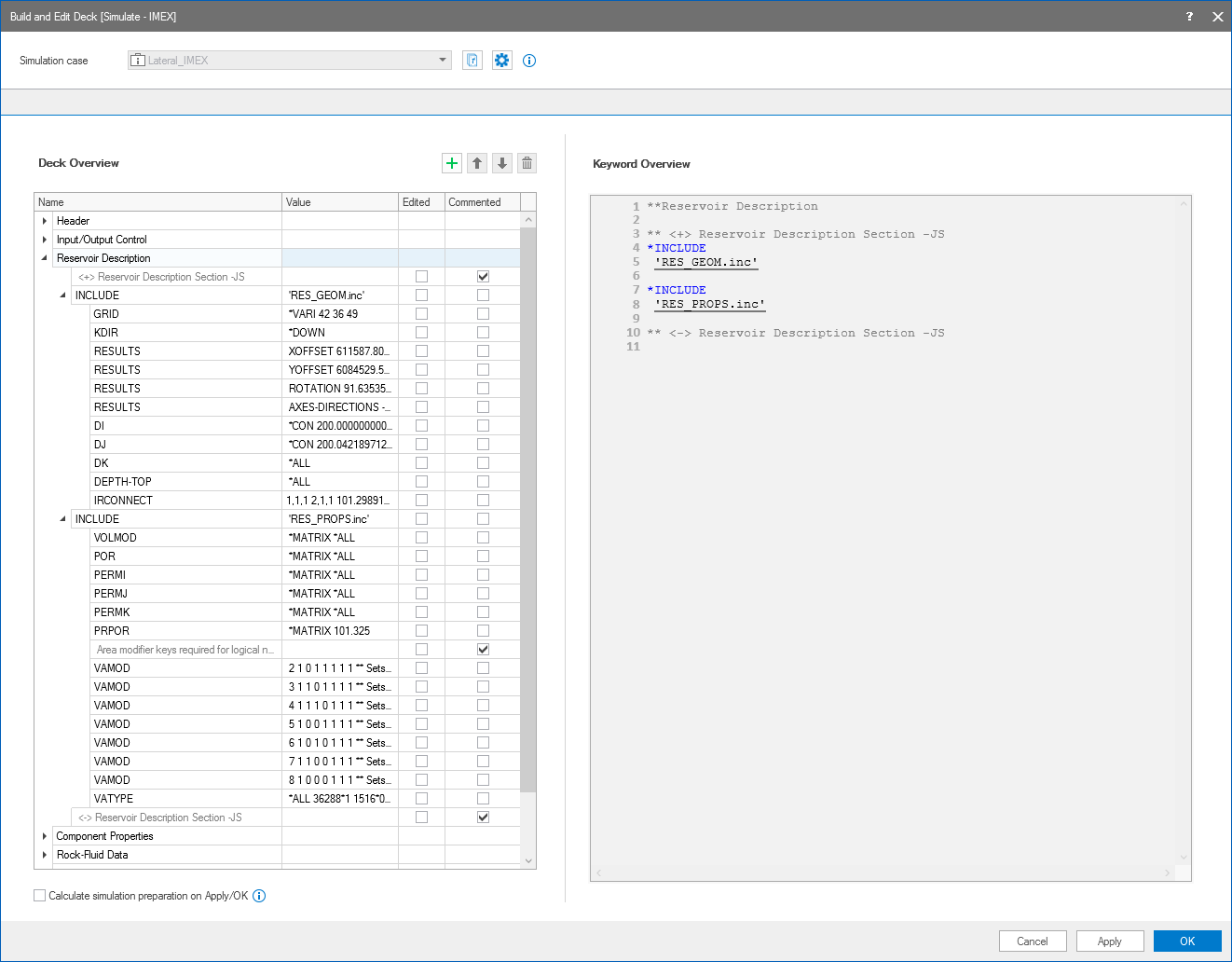

Example of a CMG deck showing the Reservoir Geometry and Properties sections (RES_GEOM.inc and RES_PROPS.inc), which should not be manually modified through deck editing. click to enlarge
- Use Commented checkbox instead of deleting keywords If you need to exclude a keyword generated by JewelSuite without removing it from the workflow forms or tables, use the Commented checkbox to disable it instead of deleting it. This will ensure the keyword is not reinserted in the deck upon clicking 'Calculate Simulation Preparation' button.
- Load Full Overview for large arrays If an array is too large, it will be truncated in the right pane (i.e., Keyword Overview) to optimize performance. To view and edit the full array, you can click the Load Full Overview button. This button appears only when the array exceeds the size limit. Depending on the array size, the loading may take some time.
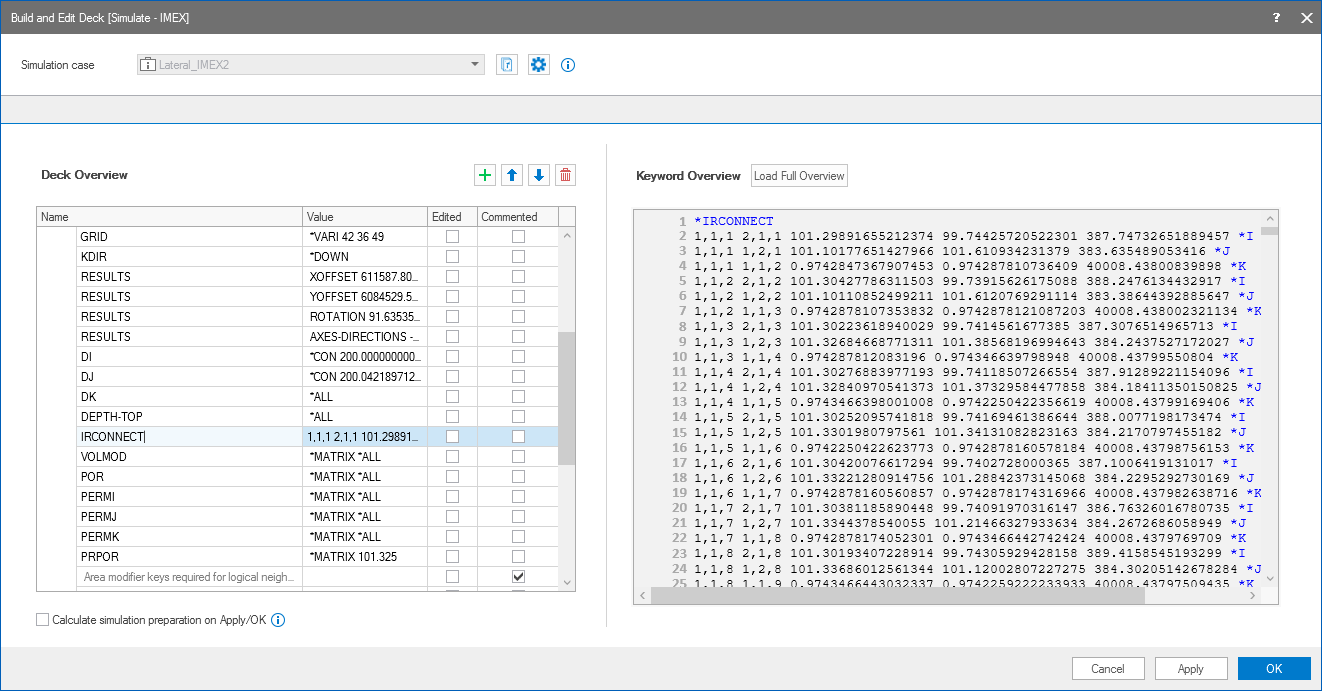
Example of truncated array (IRCONNECT) with Load Full Overview option. click to enlarge
- Storage of large include files and limitations on editing
Large include files (greater than 200 MB) are stored in the *.Cases folder instead of inside the Jewel file to improve load and save performance and reduce Jewel file size. As a result, these include files are not available for editing on the Build and Edit Deck form.
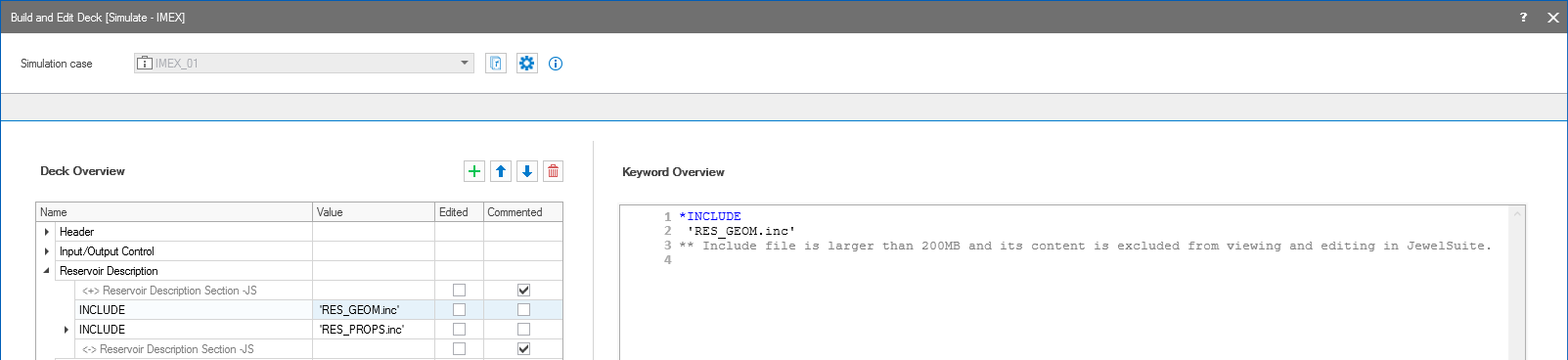
Example of large include file stored in the Cases folder and unavailable for editing in the Build and Edit Deck form. click to enlarge
- Adjusting size limits for include files
For large models, the biggest include files are typically those created for Reservoir Geometry and Properties (RES_GEOM.inc and RES_PROPS.inc), which should not be manually edited (see Avoid Editing Reservoir Geometry and Properties section in this topic). If edits from the Build and Edit Deck form are necessary, you can change the threshold in the JewelSuite.dll.config file (next to JewelSuite.exe), by changing the value of the key "MaxSimulationDeckTreeIncludeFileSizeMB".


JewelSuite.dll.config file showing the MaxSimulationDeckTreeIncludeFileSizeMB key used to adjust the size threshold for large include files. click to enlarge
When you click the  icon on the Build and Edit Deck form, a dialog box appears with the following settings:
Unix style paths Changes the path for the generated files from standard Windows™ format (C:\Users\User) to Unix format (/home/user).
Significant digits The number defines the maximum number of significant digits that can appear in the simulation deck. If the last significant digit is '5', it is rounded to '6'. When Default is selected, the number of significant digits is 15.
Example for significant digits of 5
| Original value | Value in the deck |
|---|---|
| 123456789 | 1.2346E+08 |
| 12345.6789 | 12346 |
| 1234.56789 | 1234.6 |
| 1.23456789 | 1.2346 |
| 0.12345678 | 0.12346 |
| 0.000123456789 | 0.00012346 |
| 0.0000123456789 | 1.2346E-05 |